

Add and Manage RPT Case Materials (for Case Managers)
RPT Unit Administrators, Case Managers, and Committee Managers can manage case materials according to their role, unit assignment, workflow access, and the material’s access level. Candidates can manage only the materials available in their candidate packet. If an expected option such as Add File is unavailable, contact an administrator associated with the case to confirm your access.
Add Case Materials
- Navigate to the Cases and click the hyperlinked Name of the desired candidate's case to view their case.

- Click Add File next to the requirement or section where you want to add the material on the ‘Case Materials' tab.

Before uploading the material, confirm that you have selected the appropriate destination:
Candidate Packet sections contain materials that are visible to the candidate through Your Packets. Candidates may manage their own materials while the applicable section is unlocked.
Internal Sections contain review materials that are never visible to the candidate. Access is limited to administrators and reviewers according to their role, workflow access, and the document’s access settings.
Materials uploaded by a candidate are also copied to the candidate’s Dossier. Deleting the document from the case does not remove the Dossier copy. Documents added to the candidate packet by an administrator are not copied to Dossier, but they still cannot be moved into an Internal Section. If a document was added to the wrong section, delete it from the candidate packet and upload it again to the appropriate Internal Section.
- Add the desired file by clicking Browse To Upload. Select the ‘Video’ or ‘Webpage’ tabs for other formats.

Administrators and Case Managers who have had previous cases associated with the candidate will see the the Previous Reviews tab to view all file names (listed as Artifact Names or Sections) from that review and include them in the upcoming one. Committee Managers will not see this tab or its files.

Recused or unassigned Administrators/Case Managers will not have access to the case at all.
Manage Case Materials
When an RPT Unit Administrator, Case Manager, or Committee Manager selects multiple documents, an action bar will appear with options to Select All (checkbox square), Expand All, Collapse All, Download (if enabled), Share with Candidates or Committee Members, adjust Settings, and Move files between sections.
-
Settings: This allows you to manage access and download settings for the selected documents.

Documents set to Administrators & Entire Committee become visible to a committee when that committee gains access to the case. Case Managers can view materials except those set to 'Administrators Only.'
-
Move: Authorized users can move multiple eligible attachments in a single action. Moving an internal document into the candidate packet converts it into candidate material. If the candidate has already been notified of the case, RPT displays a confirmation before a document is added or moved into the candidate packet.
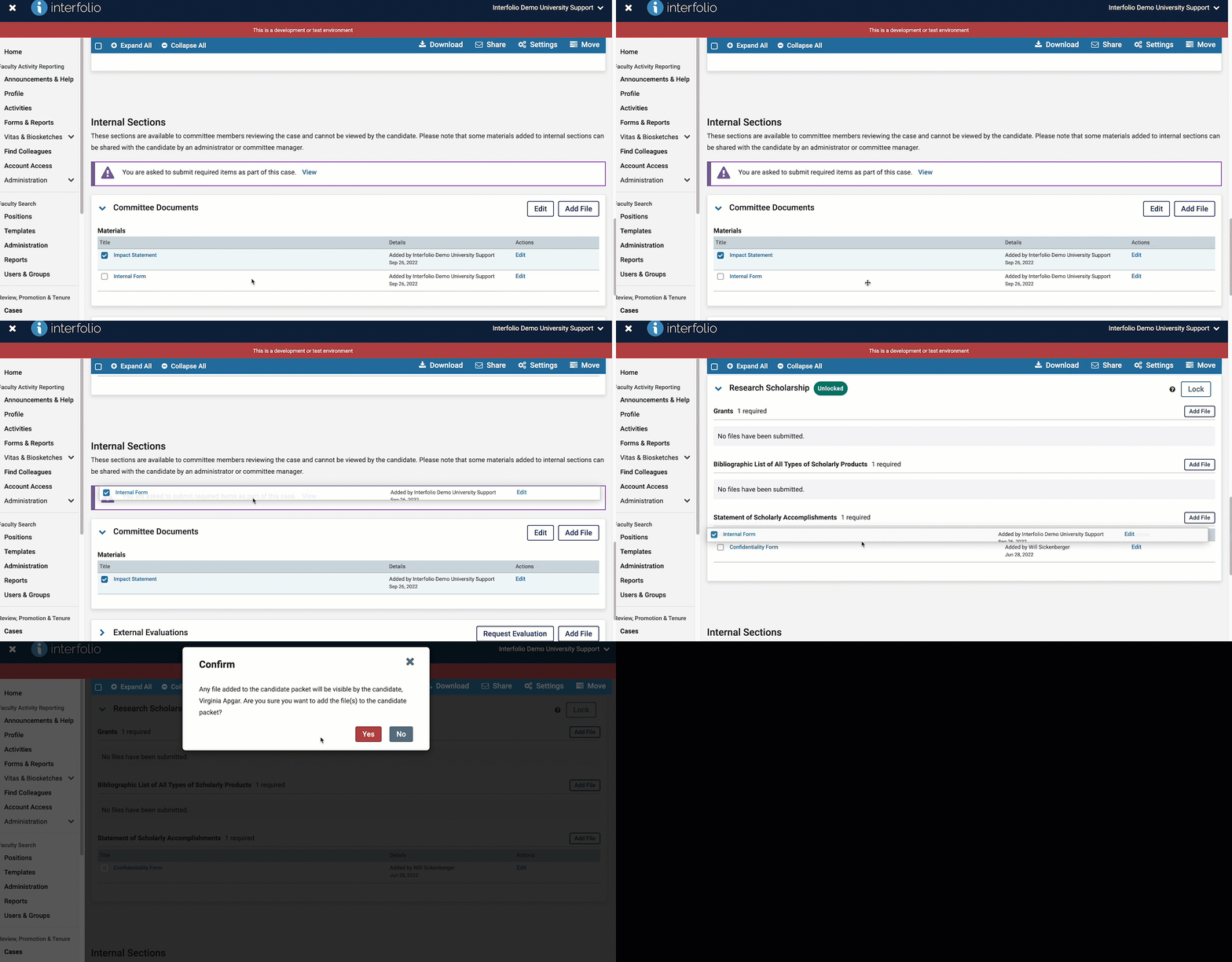
Materials cannot be moved from the candidate packet into an internal section after they are added. Once a candidate uploads materials to their Candidate Packet, these documents are copied to their Dossier account, so moving the case document would not remove access to the Dossier copy. Documents added to the candidate packet by an administrator are not copied to Dossier, but they still cannot be moved into an internal section. You must delete the misplaced document and upload it again to the appropriate internal section.
Attachments and requirement fulfillments cannot be moved together. To move both types of material, complete a separate action for each type.
Manage Required Items
Select the Case Details tab within the desired case. You may see Instructions, Required Items, Committee Members, and Voting Results.
- Under the Required Item section, you can Fill Out or Manage Respondents of a Committee Form.

User Permissions
The permissions table below compares how Unit Administrators, Case Managers, Committee Managers, and Candidates can manage case materials. For a broader explanation of RPT roles and their capabilities throughout the system check out our article Overview of User Roles in Interfolio RPT.
| Permission |
Unit Administrator |
Case Manager |
Committee Manager |
Candidate |
|---|---|---|---|---|
| Change material access and download settings. | ✔ |
✔ |
✔ |
X |
| Delete requirement fulfillments. | ✔ |
✔ |
✔ Can only delete their own materials.
|
✔ Can only delete their own files. |
| Move documents within Candidate Packet. | ✔ |
✔ |
X |
✔ Can only delete their own files. |
| Move eligible Internal Section materials into the Candidate Packet | ✔ |
✔ |
✔ |
X |
| Move packet attachments, links, or evaluations into the Candidate Packet. | ✔ |
✔ |
X |
X |
| Move Candidate Packet materials into an Internal Section | X |
X |
X |
X |
| Reuse materials from previous reviews | ✔ |
✔ |
X |
X |
- External evaluations and confidential attachments cannot be moved into Candidate Requirement Sections.
- Candidates can manage only their own materials in Candidate Requirement Sections and cannot access Internal Sections.
FAQ
What happens to committee documents and committee forms when a case is moved backward?
When a case is moved backward, both documents and completed committee forms remain in the case. However, they will only be visible according to the visibility settings defined for the applicable step.
Can an administrator edit the filename of a file uploaded by an RPT candidate?
No. Administrators cannot rename files uploaded by candidates. They can only rename files they uploaded. However, candidates can rename their own files after upload, if the packet section is unlocked. If the section is locked, candidates must contact the institution to request changes.
Can materials be moved from a candidate’s packet into an internal section?
No. Delete the document from the candidate packet and upload it again to the appropriate internal section. If the candidate originally uploaded the document, its Dossier copy will remain available to the candidate.