

Manage and Assign EEO Information: Statements and Forms
FS lets Administrators manage two related but distinct types of EEO information:
- EEO Statement: Institutionally approved language displayed with a position.
EEO form: A form that collects voluntary applicant demographic information for authorized institutional oversight and reporting.
Both are configured for a specific unit on the EEO Information page and can be made available to its lower units. Administrators can use the standard statement and form provided by Interfolio or create institution-specific versions. This article is for Institutional Administrators and Administrators who manage Equal Employment Opportunity (EEO) settings in Interfolio Faculty Search (FS).
For details on role permissions and EEO access, check out our article about User Roles in FS.
Manage EEO Information
Navigate to the Administration page and select the EEO Information tab on the left-hand side. 
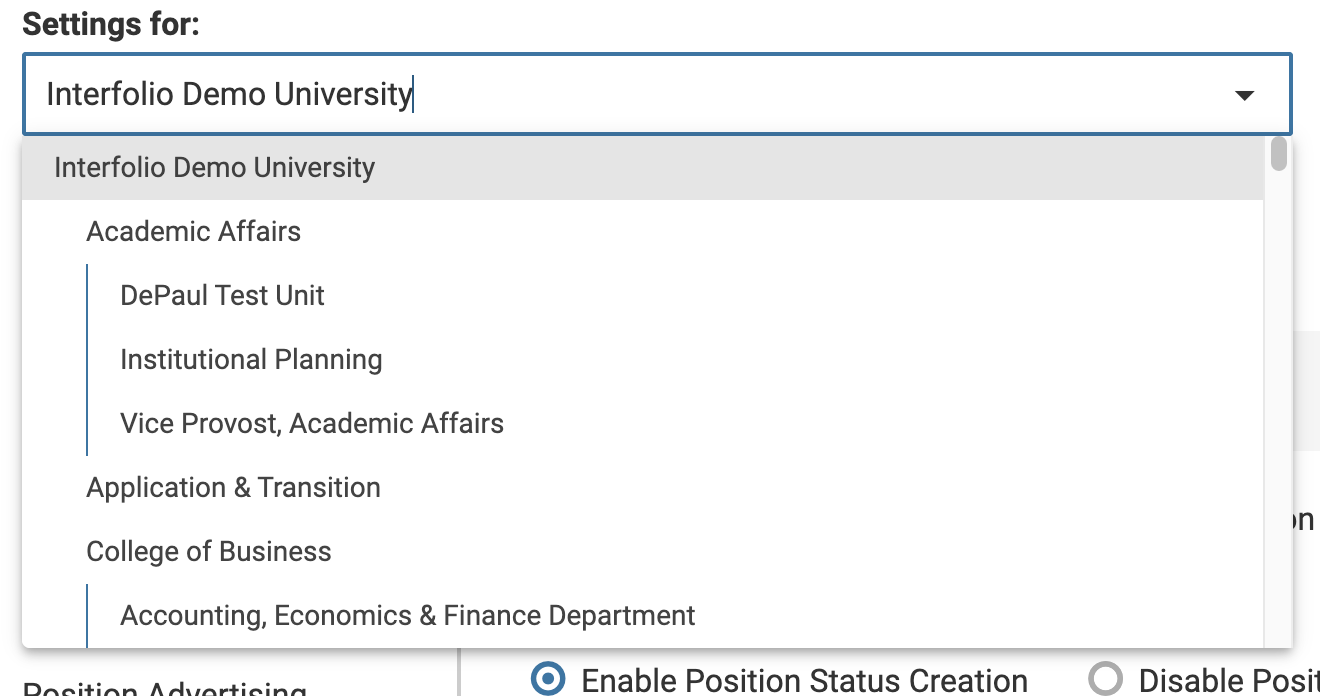
- Ensure the desired unit is selected under Settings for: at the top of the page. The selected unit determines where the EEO Statement and forms are configured and how those settings are made available to lower units and positions.
Create/Mange EEO Statement
Click the Actions dropdown to select whether you would like to use the government-mandated EEO statement provided by Interfolio or create a personal EEO statement for Administrators to use for positions.
You may also set whether administrators at lower units can edit the selected EEO statement. If editing of the EEO statement is disabled by a higher unit, a notice will appear saying Current EEO Statement set by [higher unit].
Create/Manage EEO Forms
Editing an EEO form that is in use, or replacing the EEO form on a position that already has applicants, changes how you can report on earlier responses. Review the outcomes below before making either change.
To preserve historical reporting, it is recommended to create a new EEO form instead of editing one that is in use. Keep the existing form on positions that already have applicants unless your institution has a specific reason to change it.
| Change | What happens to the form | What happens to earlier responses |
|---|---|---|
| Edit an EEO form that is already in use | The changes apply to every past and current position that uses the form. | Earlier responses may no longer appear in the Forms Report. They do remain available through the Applications Report. |
| Attach a new EEO form to a position with applicants | The new form replaces the previous one and appears blank to applicants. Earlier responses do not transfer. | Responses to the previous form are retained but may no longer be directly accessible through the Forms Report after that form is detached. |
| Attach a new EEO form to a position without applicants | FS automatically removes the previously assigned form. | No responses are affected. |
Editing an active form restricts previous response access to the Applications report only, and therefore will not be available in the EEO reporting system.
- Click the +Add button next to the ‘EEO Forms’ section.
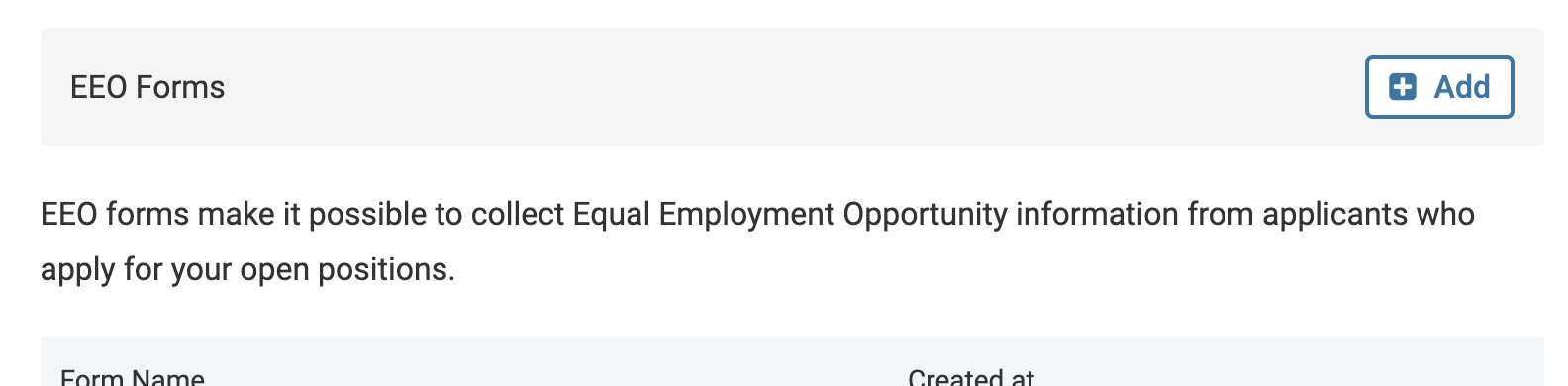
FS provides a standard VEVRAA/503-compliant EEO form, which can be used as-is or modified. The default form name for the standard EEO form is ‘EEO-1/Affirmative Action Voluntary Self Identification Form.’ Administrators may customize the form by adding, deleting, or reordering questions; however, the question text, help information, and "I prefer not to disclose" response cannot be edited.
- Enter a clear form title on the ‘Add Form’ window that appears and then continue on to add a form description explaining the purpose of the form and how the information will be used. Continue by adding the necessary questions using the +Add Question button.

Leave ‘This EEO form should be required by all new positions’ unselected until the form is complete. When the new form is ready, first clear the required setting on the currently active form. Only one EEO form can be required at a time, and the new form will remain hidden until the existing form is no longer designated as required. Then select the required setting on the new form.
Assign New EEO Forms
EEO forms attached to positions are static and will not reflect future form changes. To update an EEO form, it is recommended to create a new form rather than editing the existing one.
- Navigate to the Positions page and click the name of the desired position. On the applicant's page click the ‘Position Actions’ dropdown where you will click Edit Position.

- The Position Summary page will display. Scroll down and click the Edit hyperlink next to the ‘Application Forms’ section.

- Select the desired EEO form.

For open or draft positions, determine whether the new EEO form should replace the currently assigned form. For positions without applicants you should attach the new form. FS automatically removes the previously assigned EEO form. For positions with applicants, previously submitted responses are not transferred, so the replacement form will appear blank to applicants. Responses to the former form are retained, but may no longer be directly accessible through the standard Forms Report after the form is detached.
If applicants must complete the replacement form, confirm that their applications allow updates and notify them directly, since they will not receive an automatic notification. Closed positions should generally retain their existing forms unless there is a specific institutional reason to update them.
Once you create the new form and attach it to the position, you will be able to run reports on both forms using the EEO Form report.
- When a new EEO form is added and replaces the previous one, the form will appear blank to applicants. However, their previously submitted responses remain accessible and can be viewed by running an EEO report that includes the selected form for that position.

EEO data is specific to each position and does not transfer between them. This ensures that only those with the appropriate permissions, according to the institution's unit hierarchy, have access to the data.
FAQs
Why can't I see the new EEO form I created?
If your new EEO form is not appearing, the current form is likely still marked as "required." Since only one EEO form can be active at a time, you will have to go back and uncheck the required box on the current form. The new form will remain hidden until this step is completed.
If I change an EEO form from "optional" to "required," will it apply to existing positions?
No. Marking an EEO form as required will only affect new positions created after the change. Existing positions using the form will not be updated retroactively.
Is it possible to require an EEO form for all positions within a specific Unit, but not at the University level?
Yes, it is possible. You can create an EEO form and an EEO statement one level down from the University (e.g., at the Unit level), and configure it to apply to all positions within that Unit and its sub-units. This allows for more targeted compliance without enforcing the form across the entire institution.
What will an administrator see when EEO statement or form changes are restricted by a higher unit?
When a higher unit controls the EEO settings for the selected unit, the EEO Information page displays the inherited statement or form as read-only.
- EEO statements: The page identifies that the current statement was set by a higher unit. Options for replacing or editing the statement are unavailable.
- EEO forms: Forms supplied or controlled by a higher unit remain visible, but lower-unit Administrators may see View instead of editing options. The controls to add, edit, delete, or designate a replacement required form may also be unavailable.
