

Create Standing and Ad Hoc Committees
Standing committees are created at the unit level (university, school, college) and can be reused for cases within the unit. In contrast, ad hoc committees are case-specific and added to workflow steps during case creation or editing. An administrator or case manager must assign members to these committees before initiating the case workflow. Unlike ad hoc committees, updates made to a Standing Committee automatically apply to all current and future cases where the committee is assigned, making them ideal for recurring review groups such as departmental or college‑level committees.
A committee member will not be notified when added to a committee. They will only be notified once the case progresses to their designated step in the review process, indicating that it is ready for their review.
Create Committees
Standing Committee
Standing Committees are permanent, unit‑level committees that you manage from the “Users & Groups” page. Once configured, they can be applied to cases in the committee's unit or a unit below it and will carry the same membership, permissions, and structure across all cases that use them.
- Navigate to the Users & Groups page on the navigation menu and then select the Committees tab at the top.

- Click +Add Committee in the upper right-hand corner and fill out the 'Add Committee' window that displays.

- Click the Save button to display a list of Committee Members for the selected unit.

-
Search for the user's name to +Add them to the committee as a committee member. Close out of the window when finished.
You can assign a user as a Committee Manager by selecting the star icon next to their name.

Updating a user’s Committee Manager status in a standing committee updates that role everywhere the committee is used, including in all cases and in Users & Groups.
- Repeat the process until all committee members are added.
When you’re ready to use this committee in a case, see Manage Committees at the Case Level to assign it to a case review step or make changes specific to that case.
Ad-Hoc Committee
Ad‑hoc committees are created directly within a single case and are used only for that case’s review process. Since ad‑hoc committees are case-specific, any membership or permission changes you make affect only that specific case. To establish a committee that appears automatically on future cases and can be managed centrally, use the “Users & Groups” page to configure a Standing Committee.
- Navigate to the Cases page on the navigation menu and click the Name of the desired case to edit.

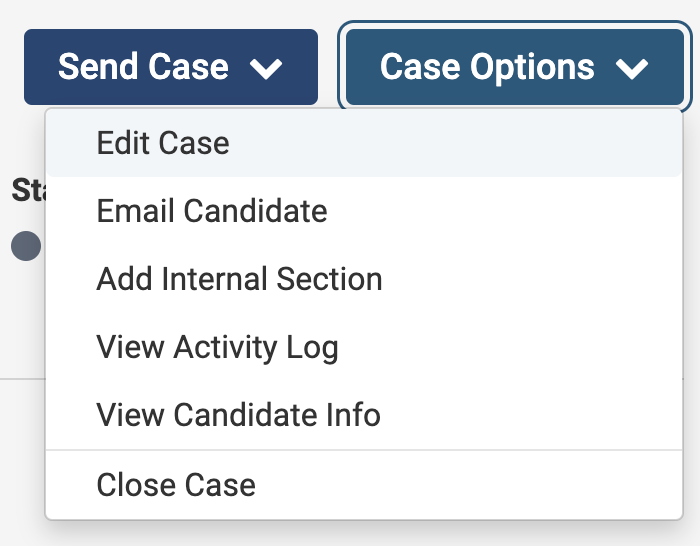
- Select Edit Case under the ‘Case Options’ dropdown in the upper right hand corner.
- Select Case Review Steps on the right-hand side.

- Click Edit next to the desired step to add the ad-hoc committee, scroll down to the Reviewers section, click Add Committee, then select Ad Hoc Committee from the ‘Add Committee’ window.

- Enter a name for your committee or select an existing ad hoc committee. Click the +Add button when finished.
- Scroll down to the Reviewers section to add committee members and materials.

- The other tabs allow you to add Instructions, Required Documents, and Required Forms for the committee, as well as adjust Settings (whether the committee can move the case forward/backward).
FAQs
How do I save changes to a standing committee’s name or unit?
After changing the committee’s Name or Unit, select Update to save your changes.
If I update a standing committee’s membership, will active cases update automatically?
Yes, the membership of the standing committee will automatically update on all active and closed cases to reflect changes made in Users & Groups.
The one exception is that temporary committee members added directly to the case (not part of the official standing committee) will not be removed automatically when the standing committee membership changes.
How can I download a list of standing committees?
On the Users & Groups page, open the Committees tab and select Download. The Excel file includes committee names, units, members, and email addresses. You can use it to audit membership or prepare for upcoming cases.
What notifications do committee members receive?
Committee members will receive email notifications in the following scenarios:
- When a new case has been submitted, which may occur only once if the case is submitted as one large section with multiple uploads.
- When a case has moved to the committee’s designated step for review.
- If a case is structured with multiple sections, committee members will be notified when each section is ready for review, but they will only receive one notification for the overall case submission.
Adding someone to a committee does not itself send an email. Members on the first case review step are notified when the case is submitted. At later steps, the person moving the case can choose whether to notify the reviewers gaining access.
How do we ensure committee acknowledgment before the case moves to the next step?
You can ensure this by setting up document requirements within the case. These requirements can be added on the Case Details tab and must be completed by the committee before the case can advance. This setup ensures that all necessary documents are reviewed and acknowledged, as the case will not move forward until all requirements are satisfied.
While this generally applies to all committee members, requirements can be set for committee managers only, meaning not every member may need to complete them.
Can a standing committee be permanently deleted if it is still listed in a closed case?
No. A standing committee cannot be deleted while it is still associated with any case or template (including closed cases). 
If RPT reports that a committee is connected to an “active” case but you do not see the case listed, it is usually because the committee is still assigned to a closed case or to an active template (templates cannot be archived). To delete a standing committee, you must first remove it from all Case Review Steps and Template Review Steps where it appears:
- Replace the standing committee with a blank Ad Hoc Committee in the review step.
- Remove the standing committee from every step in all relevant templates and cases (open and closed).
- Once the committee has been removed everywhere, you can delete it from the Committees tab under Users & Groups.
If the case was deleted before the committee was removed from the review step, RPT will still treat the committee as “in use.” In those situations, an engineering ticket may be required to fully delete the committee.