

Sign Into Interfolio
Institutions may allow their users to log in with credentials specific to Interfolio, or with Single Sign-On (SSO). SSO is an authentication method that enables users to securely authenticate with multiple applications and websites by using just one set of credentials. This article will review different methods on how to sign into an Interfolio Account.
For security purposes, Interfolio will log out any user after 60 minutes of inactivity.
Interfolio will partner with Institutional Administrators and the institution's IT department to set up and manage the SSO integration. It is crucial to maintain the SSO integration and for the institution to provide Interfolio with notice of any changes to their SSO such as updated metadata, servers, or shared attributes.
Check out this article on SSO maintenance and troubleshooting for more information.
Sign In to Interfolio
Personal Credentials
- Go to the Interfolio sign in page.
- Enter in email and password.
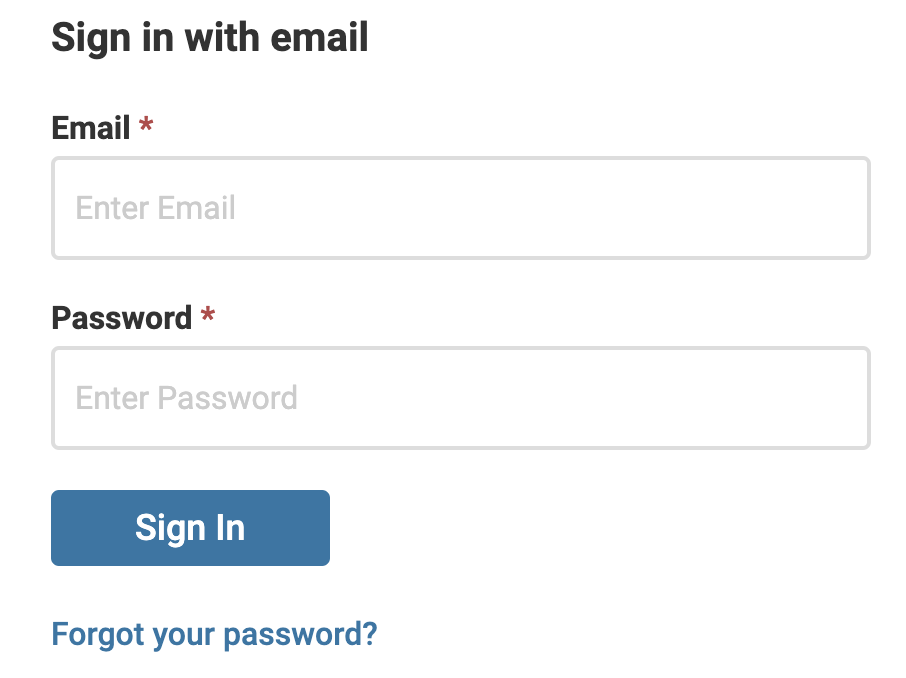
Institutions that partner with Interfolio using one or more of the Enterprise products (Faculty Search (FS), Review, Promotion & Tenure (RPT), Faculty Activity Reporting (FAR, Faculty180)), may provide sign in via the Single Sign On (SSO)/Partner Institution option. If the institution requires SSO, then users will be prompted to log into those credentials. Check out the tab on SSO for more information.
Single Sign On (SSO) via Partner Institution
- Go to the Interfolio sign in page.
- Select Sign in with Partner Institution.
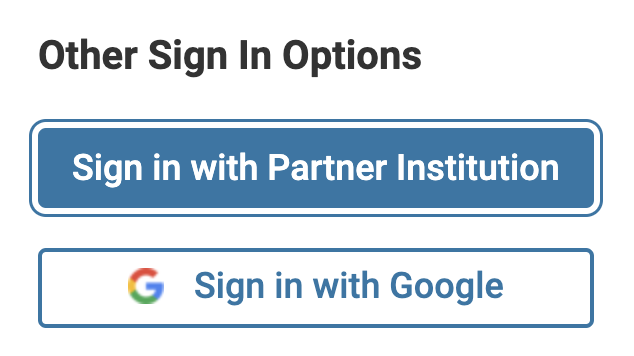
- Search for your institution in the field provided.
- Click Sign In when finished.
If the institution is not listed, sign in with email and password or google account. Check out the tab on Personal Credentials or Google Account for more information.
Google Account
- Go to the Interfolio sign in page.
- Select Sign in with Google.
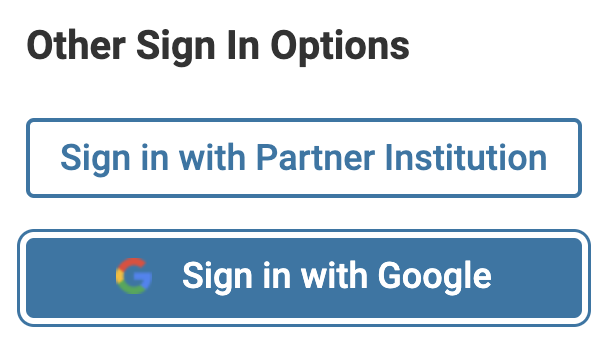
- Select desired Google account.