

About Autoloads
Autoloading allows institutions to send files to Faculty Activity Reporting (FAR) through Interfolio’s secure SFTP server for scheduled processing. An autoload is a recurring process that checks a designated SFTP folder for an approved data file and processes the file according to a defined schedule. Autoloads can reduce the need to submit separate data-load requests each time an institution sends updated data to FAR. Interfolio’s Technical Services team configures each autoload based on the type of data, approved file structure, SFTP location, processing schedule, and notification recipients. This article explains the data types that can be autoloaded, file and folder requirements, processing schedules, notifications, and what happens after a file is processed.
SFTP access is required for recurring autoloads. It is not required for an initial bulk upload, although SFTP is the recommended method for transferring institutional data securely. If you do not have SFTP access, email Interfolio-support@elsevier.com with your request including the name of the section to be autoloaded, a sample of the data file(s), the email addresses that need to receive the autoload notification, the autoload frequency required, and the day/time for the process to run (e.g. every Friday at 5 am EST).
Once configured, base data autoloads run automatically according to the defined schedule. Non-supported data types are processed manually upon request or based on a pre-arranged schedule.
For changes to autoload settings (e.g. schedule, file naming, or notification recipients), email Interfolio-support@elsevier.com. Contact Technical services before changing file names, columns names or order, file formatting, field mappings, SFTP folder location, processing frequency or schedule, notification recipients, or the type of data included in the file. Include the name of the autoload or FAR section and a sample of the proposed file when requesting a change.
Autoload Information
Supported autoload data
The available autoload configuration depends on the type of data being sent and how the corresponding FAR section is configured. Technical Services will confirm whether the requested data can be autoloaded before the institution prepares its production process. Once a data file is approved for autoloading, the file structure (file names, column names, column order, and formatting) will need to stay consistent. Only non-base data can have a name change. If needed, please send a support request before making the change.
The following base-data files are supported:
| Supported import | Upload type | Example file name |
|---|---|---|
| Faculty | faculty |
Faculty180_faculty_2019-08-11_01.csv |
| Faculty Classifications | faculty classifications |
Faculty180_facultyclassifications_2019-08-11_01.csv |
| Current Positions | current positions |
Faculty180_currentpositions_2019-08-11_01.csv |
| Course Prefixes | prefix |
Faculty180_prefix_2019-08-11_01.csv |
| Courses | courses |
Faculty180_courses_2019-08-11_01.csv |
| Courses Taught | courses taught |
Faculty180_coursestaught_2019-08-11_01.csv |
Coming Soon
- Degrees
- Other Institutional Service
- Institutional Committees
- Work Experience
- Attachments
Technical Services may also support scheduled processing for the following data:
| Data type | Upload type | Example file name |
|---|---|---|
| Scholarly activities |
abstract, book, digitalmedia, journalarticle, or another approved activity type |
Faculty180_abstract_2019-08-11_01.csv |
| Grant awards | award |
Faculty180_award_2019-08-11_01.csv |
| Grants award collaborators | award_collaborator |
Faculty180_award_collaborator_2019-08-11_01.csv |
| Grants proposals | proposal |
Faculty180_proposal_2019-08-11_01.csv |
| Grants proposal collaborators | proposal_collaborator |
Faculty180_proposal_collaborator_2019-08-11_01.csv |
| Custom sections | Most file types within FAR | Faculty180_[section_name]_2019-08-11_01.csv |
For grant specific behavior and requirements check out our article About Award and Proposal Autoloads for Grant Data.
File requirements
Files must meet the requirements approved during autoload setup:
- Use CSV for comma-delimited files or TXT for tab-delimited files.
- Encode files in UTF-8.
If particular uploaded .CSV file(s) are not encoded in UTF-8, re-save the files as UTF-8 in order for the data to be read correctly by the data base. It is recommended to provide a delta file, instead of a file containing the full data set. A delta file will include new records and records that have changed since the last load. This will help to reduce processing time and improve the accuracy of the updates.
- Follow the approved column names, column order, and formatting.
- Follow the required file-naming convention.
- Upload the file to the SFTP folder assigned to the applicable database and data type.
- Keep the approved file structure consistent between loads.
- Provide a delta file containing new and changed records when possible. Delta files can reduce processing time and limit unnecessary updates.
- Base-data files can initially include only the required fields, with additional fields added later. Adding fields requires a change to the autoload setup.
File types that are not supported and should not be included are .doc, .docx, .pdf, .xls, .xlsx, subdirectories, etc.
Check out our article Overview of Our Data Models for available data models and field requirements.
File-naming convention
Use the following naming convention: Faculty180_<upload_type>_<yyyy>-<mm>-<dd>_<sequence>.csv.
For example, the file name Faculty180_CoursesTaught_2015-08-11_01.csv indicates a Courses Taught file uploaded on August 11, 2015. The final sequence number identifies the order of files of the same type sent on that date. If a second Courses Taught file is sent on the same date, useFaculty180_CoursesTaught_2015-08-11_02.csv
Info to verify
| First-Level Directory Folder | Details | Subdirectory Folders |
|---|---|---|
| incoming | All non-base data files, such as grants, advising, professional development, and more, that are not supported by the base-data autoload. |
Files from the client (e.g. grants, advising, scholarship) will be directed to /incoming/[database_name] if the file is to be loaded into production.
Data types (e.g. scholarly, grants, degrees, custom) will follow the path /incoming/[database_name]/[data_type]. |
| processed | Base data autoload files for faculty, current position, faculty classification, prefix, courses, and courses taught that are supported by the base-data autoload. | Files are moved to /processed/[database_name] after processing. |
| autoload | Autoload has to be set up in order to support this processing. Please reach out to Interfolio-support@elsevier.com if your autoloads need to be set up or reconfigured. | /autoload/[database_name] is the production database directory for base data autoload (only files for faculty, current position, faculty classification, prefix, courses, courses taught). |
|
outgoing For Interfolio use only. |
Any non-base data files, such as file logs and Interfolio-generated file extracts (limited scope), that are not supported by the base data autoload. |
/outgoing/[databasename]/logs contains non-base-data processed file logs (recent version), such as grants, advising, scholarship, etc.
/outgoing/[databasename]/old_logs contains non-base data processed file logs (older version). |
SFTP folders
Interfolio creates the SFTP directory structure and provides the folder location the institution should use.
| Folder | Purpose |
|---|---|
/autoload/[database_name] |
Location for supported base-data autoload files. |
/incoming/[database_name]/[data_type] |
Location for other supported data files. |
/processed/[database_name] |
Location for successfully processed base-data files. |
/outgoing/[database_name]/logs |
Location for processing logs. |
/old_files |
Location for certain successfully processed files within an incoming data directory. |
For example, grant files are uploaded to /incoming/[database_name]/grants

Upload files to the assigned database and data-type subfolder. Do not upload files directly to the first-level /incoming, /processed, /autoload, or /outgoing folders, but rather to the appropriate subdirectory folder for the database.
File processing and results
Files can be uploaded to the assigned SFTP folder at any time. The system checks for files according to the schedule established for the autoload. If no file is present at the scheduled time, that processing run is skipped. The system checks again at the next scheduled interval. Processing schedules vary by data type and configuration. Institutions commonly send files weekly or monthly. Technical Services confirms the available schedule during setup.
Base data processing order
When multiple related base-data files are processed, FAR uses the following order:
- Faculty
- Faculty Classifications
- Course Prefixes
- Courses
- Courses Taught
This order allows foundational faculty and course information to be available before dependent records are processed.
Time of import
| Data Type | Import Time | Other Details |
|---|---|---|
| Base Data | Imports are scheduled for processing at 2:30 AM EST/3:30 EDT daily daily. | If no data is found, or if an Error Message appears, then the import will not occur. |
| Scholarship & Grants | By default, the system checks for files on the 1st, 10th, 20th, and 30th of the month. | Import schedules can be customized upon request. |
| Custom Sections | By default, the system checks for files on the 5th, 15th, and 25th of the month. |
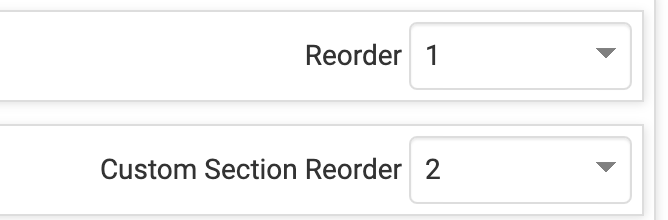
Custom Sections are most sections in FAR. Import schedules can be customized upon request. When editing an input form, each section will display either 'Reorder' for Default sections or 'Custom Section Reorder' for custom sections. |
Logs and processing results
An autoload produces logs that describe the results of the processing run:
- Success log: Identifies records that were processed successfully and indicates whether each record was inserted, updated, or left unchanged.
- Error log: Identifies records that could not be processed and provides available information about the reason for the error.
A file must use the approved format and column order and must be uploaded to the correct SFTP folder.
| Successfully processed files | Files that cannot be processed |
|---|---|
|
|
Review the notification and processing logs. Remove the unsuccessful file from the folder or correct it before the next scheduled run. Otherwise, the system may attempt to process it again.
Autoload notifications
When an autoload completes, Interfolio sends a status email to the designated recipients, such as FAR administrators or the team managing data uploads.
Depending on the autoload configuration, the notification sent from noreply@f180-prod.localdomain may include:
- Names of processed files
- Section loaded
- Number of new records
- Number of updated records
- Number of unchanged or duplicate records
- Number of records with errors
For base-data autoloads, notification recipients are listed in the notification.txt file located under /autoload/[database_name]/, which lists email addresses (one per line) of users to be notified once the process completes. These emails will contain information on the upload, including counts of new, duplicate, and failed records as well as a list of lines that were duplicate or failed. Emails in this file could include FAR administration or the entity that creates files for automatic upload.
Once granted SFTP access, users can edit recipient notifications by navigating to autoloads > notifications.txt, downloading and editing the file, then re-uploading it. Please do not remove the @interfolio.com address included in the notification.txt file. For non-base data, notification recipients are managed by Interfolio’s Technical Services team; to update the recipient list, contact Interfolio-support@elsevier.com.
FAQs
What happens when a file is processed?
For Supported Base Data Autoload Types that Meet Requirements
- After processing, files are moved from the autoload folder to the processed folder.
- Unprocessed files (those that do not meet requirements) remain in the autoload folder. The system will continue to try to process the bad file.
- Please review the notifications that are sent. These failed files will be noted and the file should be deleted from the directory folder.
For Supported Non-Base-Data Autoload Types that Meet Requirements
- After processing, files are moved to a folder within the same directory called /old_files.
- Unprocessed files (those that do not meet requirements) remain in the /incoming folder.
- Please review the notifications that are sent and the outgoing logs for more details. These failed files will be noted and the file(s) should be removed from the directory folder or modified to meet requirements.
What happens if a DELETE or RETAIN file is shared inadvertently, or contains incorrect information?
Your institution is responsible for sending accurate information to Interfolio regarding what records to keep and which to delete. In the event that records are impacted inadvertently, please contact Support immediately. The data can be restored via a bulk load provided by your institution (when applicable), or via a full-database restore to the latest available backup. Please note that the latter is a complete database restore, so all data in your database will be restored to an earlier state. Manual edits to records bulk imported to FAR will be lost.
Check out this article for more information on how to delete or retain bulk-loaded records in FAR.