

Start the Selection Process
At the end of a search in Faculty Search (FS), an Administrator or Committee Manager closes the position and identifies the applicant or applicants selected for hire. If the position’s approval template includes selection approval steps, the proposed selection must complete those steps before the selection process is finalized. These steps allow designated institutional approvers to review and authorize the proposed selection before the hiring decision is finalized. Institutions may use this process to support hiring policies, maintain consistent oversight, and document required approvals.
After the selected applicants are identified, FS displays the first selection approval step and its assigned approvers. The Administrator or Committee Manager can review all configured steps, include an optional message, and submit the selection for approval. Assigned approvers receive an email and action item, and the selection proceeds through each step in order. This article explains how to close a position, identify selected applicants, submit the selection for approval, and confirm who will review the first step.
If no Selection Approval Steps apply to the position, no additional approval process is required after the selected applicant is recorded and the position is closed.
Start the Selection Process
- Close the position and add selected applicants.
- The approvers for the selected applicant(s) will display.
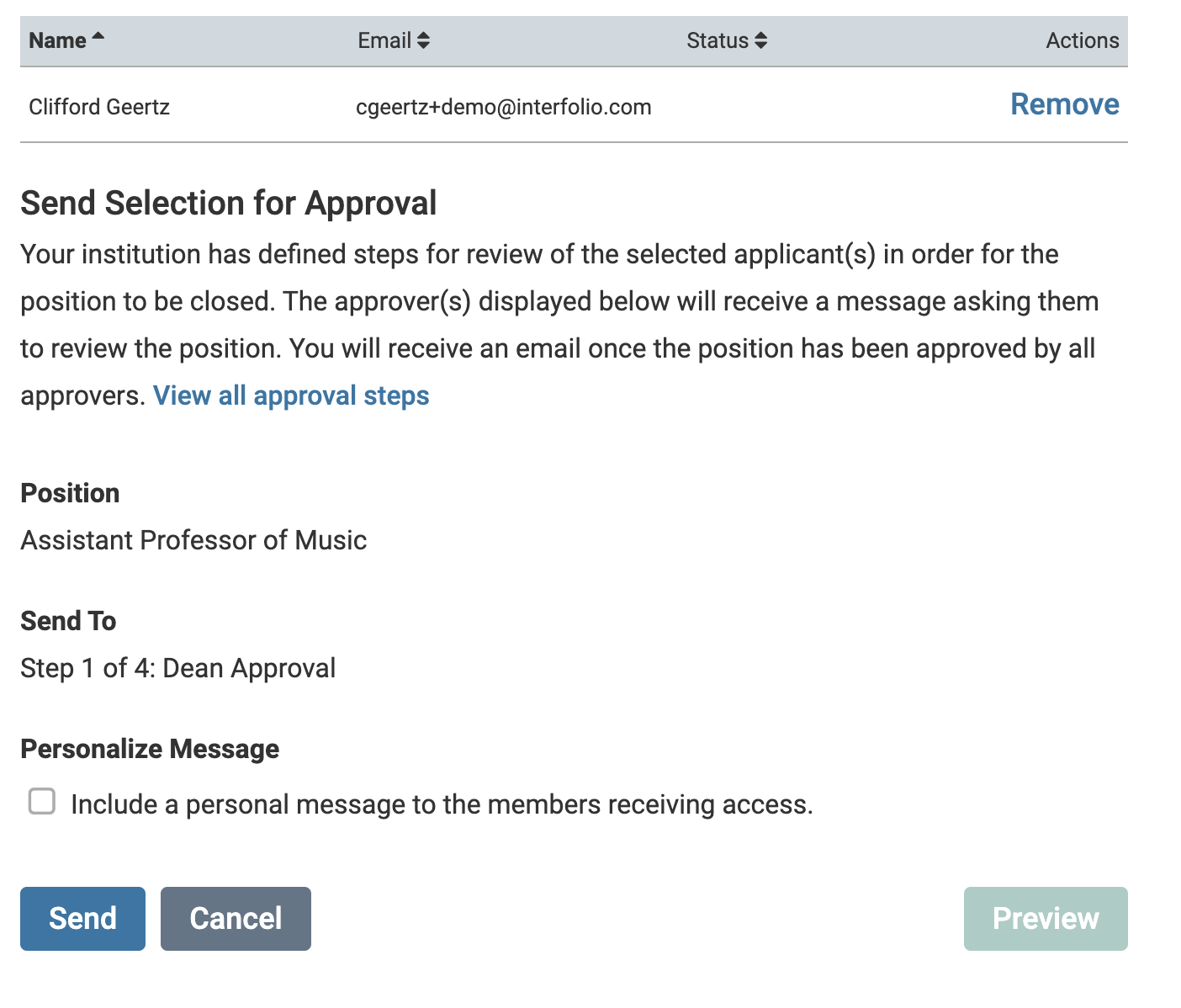
An personalized message can also be sent to the reviewers receiving access.
- Click Send when ready to submit the selection for approval.
Note that you can view all approval steps, include a personal message, and preview the message before sending the selection to the approval step.