

Add and Manage Users in FS
Before a person can participate in a search committee or perform administrative work in Faculty Search (FS), they must be added as an FS user. New users default to the Evaluator role but can be changed by authorized users. Administrators and authorized Committee Managers can add users within the units they manage and assign the roles that determine what each user can access and do. A person must be added as an FS user before they can be assigned to a position’s search committee. When adding or editing a user, Institutional Administrators can also manage the user’s Single Sign-On (SSO) ID directly in FS. The SSO ID corresponds to the user’s institutional identifier and allows institutions using SSO to confirm that the correct credentials are associated with the account. This article explains how to add an FS user, configure their sign-in information, send a welcome message, assign unit-based roles, and manage access for existing users You may also add users in bulk by contacting interfolio.
Note that adding a user to FS will not automatically give them access to Dossier. If that user also needs access to Dossier (for example, in order to apply to any internal positions), they should reach out to support and we can add it to their account.
Add New Users
- Navigate to the Users & Groups page and click the Add User button at the top of the ‘Users’ tab.

Administrators can view all users in the system under the Users & Groups section. However, they can only assign roles to users who are part of their assigned unit or any sub-units beneath it.
- Click the Pencil (Edit) icon to manage existing users including updating their permissions and titles, resending the invitation email, or permanently deleting users.

Only Unit and Institutional Administrators can delete users. Deletion is irreversible, but users can be re-added if needed.
- Click the Pencil (Edit) icon to manage existing users including updating their permissions and titles, resending the invitation email, or permanently deleting users.
- Enter the user's information on the Add User window that appears.

To enforce SSO, click the checkbox adjacent to ‘If checked, this user will need to sign on using their institutional credentials.’ This will only appear for institutions with the appropriate SSO settings turned on.
- Institutions with UID enabled will need to select the user type of ‘Internal’ or ‘External.’ If Internal is selected, they are required to enter the UID.
UIDs are case sensitive.
- Institutions with UID enabled will need to select the user type of ‘Internal’ or ‘External.’ If Internal is selected, they are required to enter the UID.
- Check the Send new user a welcome message box if desired. You will also have the option to send a copy of the message to yourself.

If the Message field is blank when the ‘Send new user a welcome message’ box is checked, the following error will appear. ‘Oops! A server error has occurred. Sorry.’ The user may uncheck the box if they do not wish to include a message otherwise the system will require you to add a message in that field.
- Click the Save button when finished.The window will refresh and you will be able to Add Roles by clicking the button at the bottom of the window to assign the user to roles within each unit they are assigned to.

Only Institutional Administrators can add or update a user’s SSO ID in FS and RPT. While Unit Administrators can add users to the system, they do not have access to enter or modify SSO IDs. If a user is unsure of their SSO ID, they should contact their institution’s IT department for confirmation. In some cases, the SSO ID stored in Interfolio may appear as a long or unfamiliar value. This is expected and reflects how the institution’s SSO information is processed, not an error in the SSO configuration.
- Select the Unit and Role and click Save when finished.

- Users will appear on the User List immediately after clicking save.
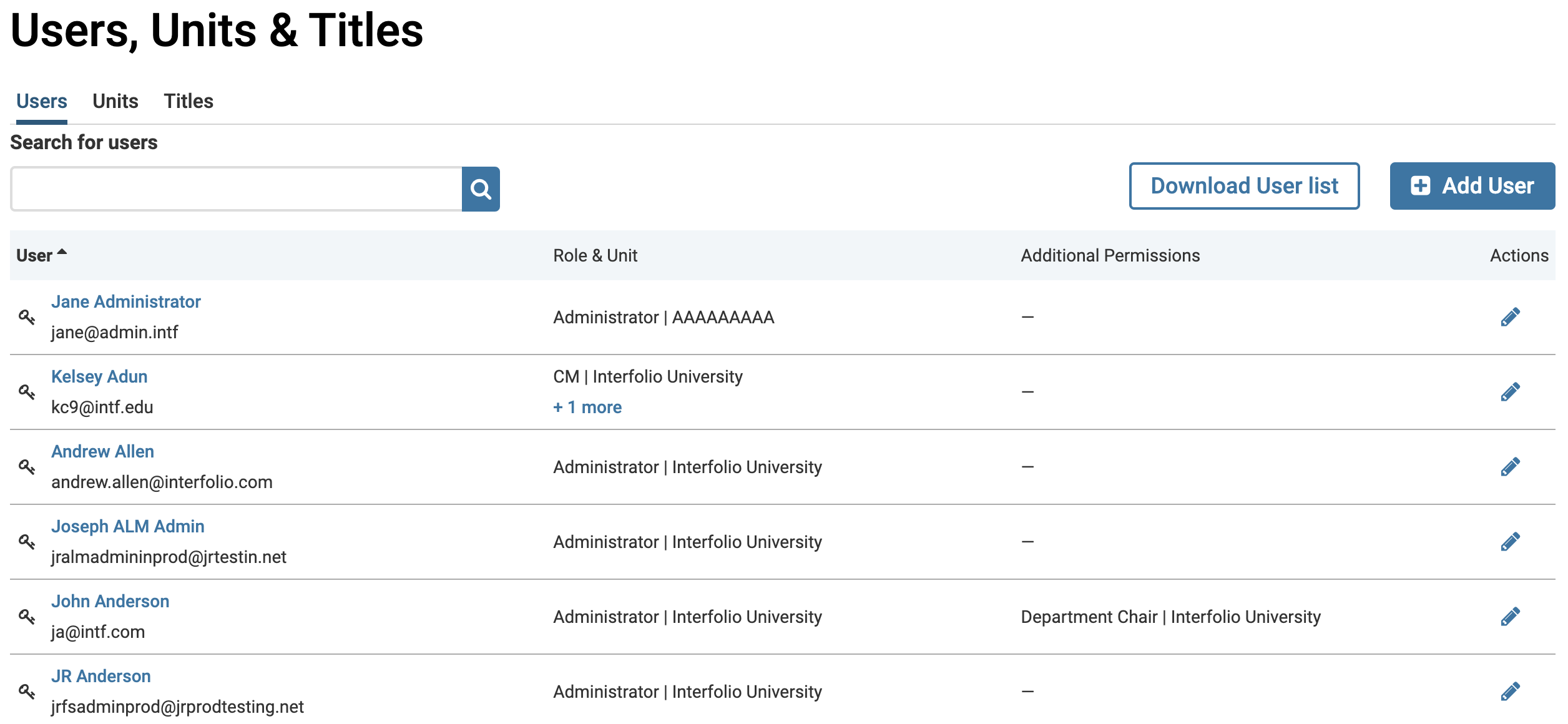
Users with an SSO login are identified by the Key icon to the left of their name.
Administrators and Committee Managers can Resend the Invitation Email to Interfolio Faculty Search to help their faculty access their account. That email will prompt faculty members to create a new password and allow them to access their account. If Committee Members are experiencing any trouble, they can Recover their Password from the Interfolio home page.
Note that removing an SSO ID is not recommended and may result in the user losing access to the program. If an SSO ID is removed by mistake, it can always be updated again via the SSO Identifier tab.