Configure Form Question Types in FS
When creating an application or EEO form in Faculty Search (FS), select the question type that best matches the information applicants should provide. This article explains the available text, paragraph, multiple-choice, checkbox, and grid question types; how applicant responses behave; and how to organize complex forms with section dividers, headings, and descriptions. It also identifies important considerations for required questions, editing, deletion, and reporting.
Questions can be deleted from the form. However, removing a question permanently excludes it from reporting. Only answers from the latest version of the form are included in reports.
Add Question Types
Click the down arrow to the right of the Add Question button to enhance your form by adding a divider for visual separation, a heading for section titles, or a description for context. For complex forms, combine these elements to improve readability and user experience.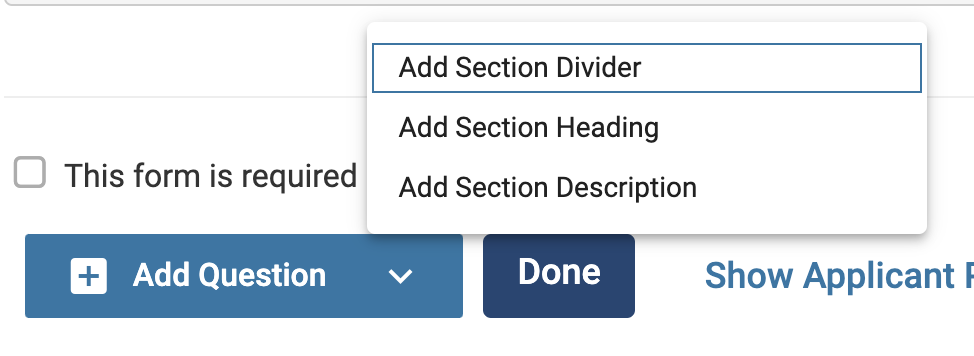
Add questions by clicking the Add Question button at the bottom of the page.

For required questions, ensure the box is checked before saving. If you need to change this later, you must delete and recreate the question.
-
Text: Short, single-line responses. Ideal for concise, free-form answers.

-
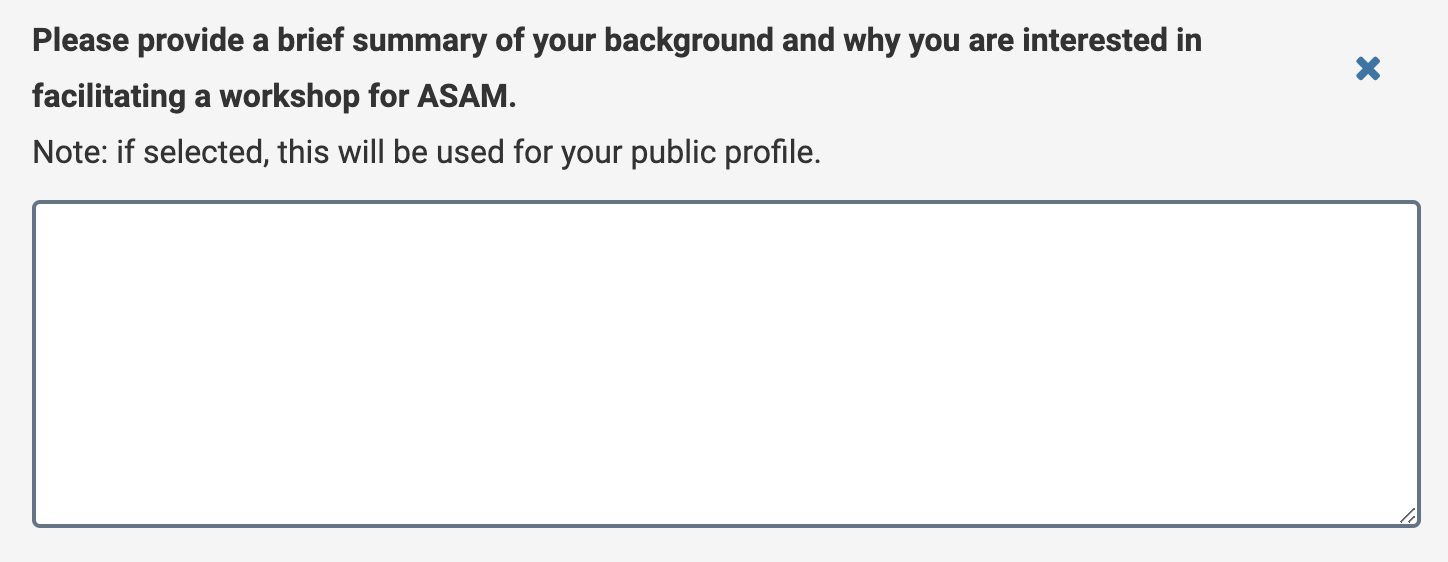
Paragraph: Large text box for detailed responses. Ideal for or longer, paragraph-form responses.
-
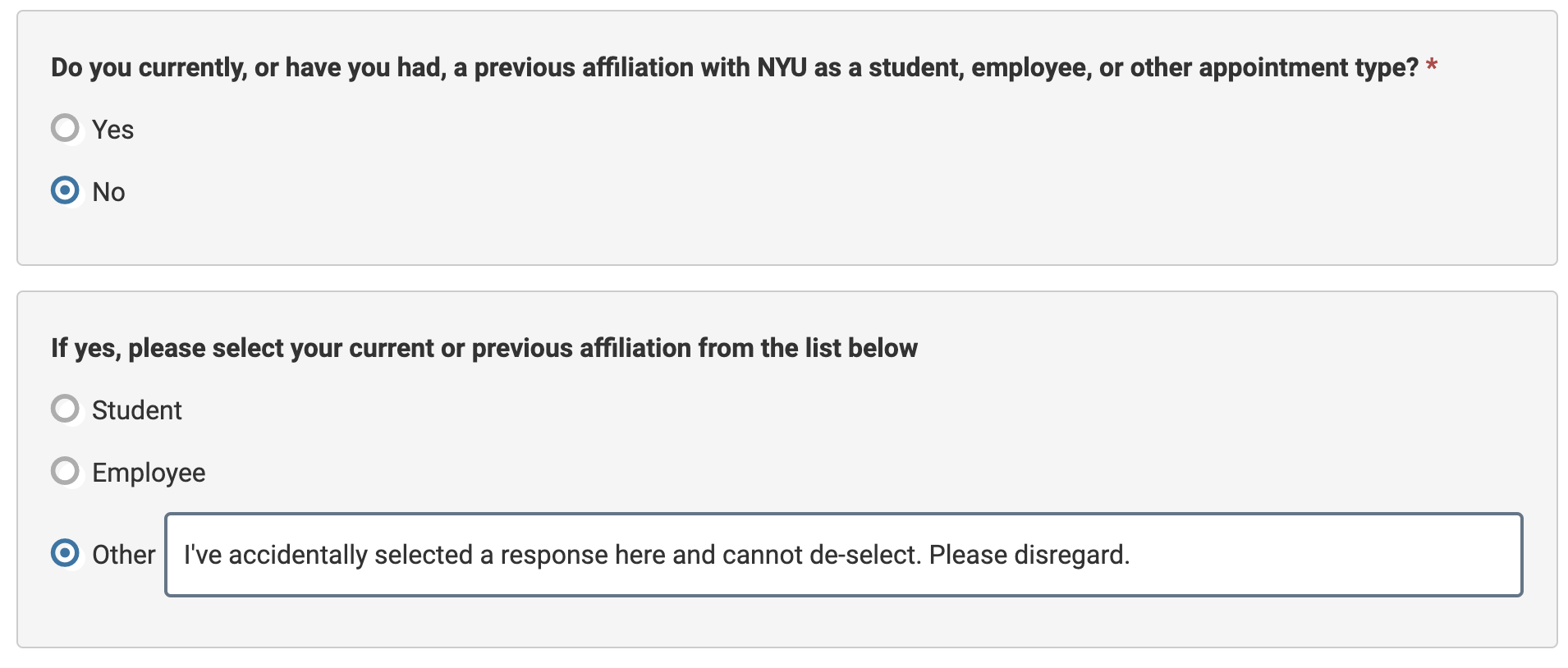
Multiple Choice: One selection per question. This type of question can also work for True/False, Yes/No, and other binary questions. Applicants can also be provided with a box for Other, where they enter their own answers.

Once an applicant selects a multiple choice option, they can change their response by selecting another option, but they cannot de-select an option in order to leave the question blank. If you are creating an optional question that does not apply to all applicants, you may want to consider including the “other” option so that applicants can indicate that they chose an answer by mistake.
-
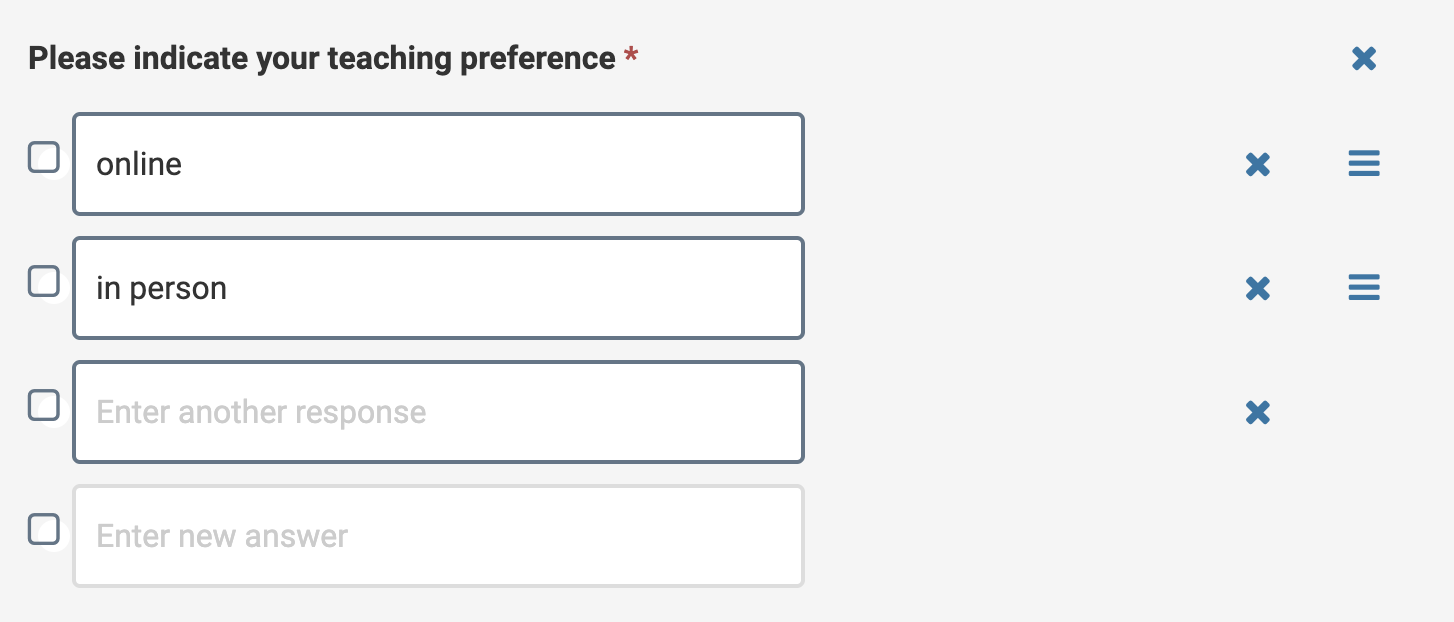
Checkboxes: Multiple selections allowed. Include “Other” for custom input.
-
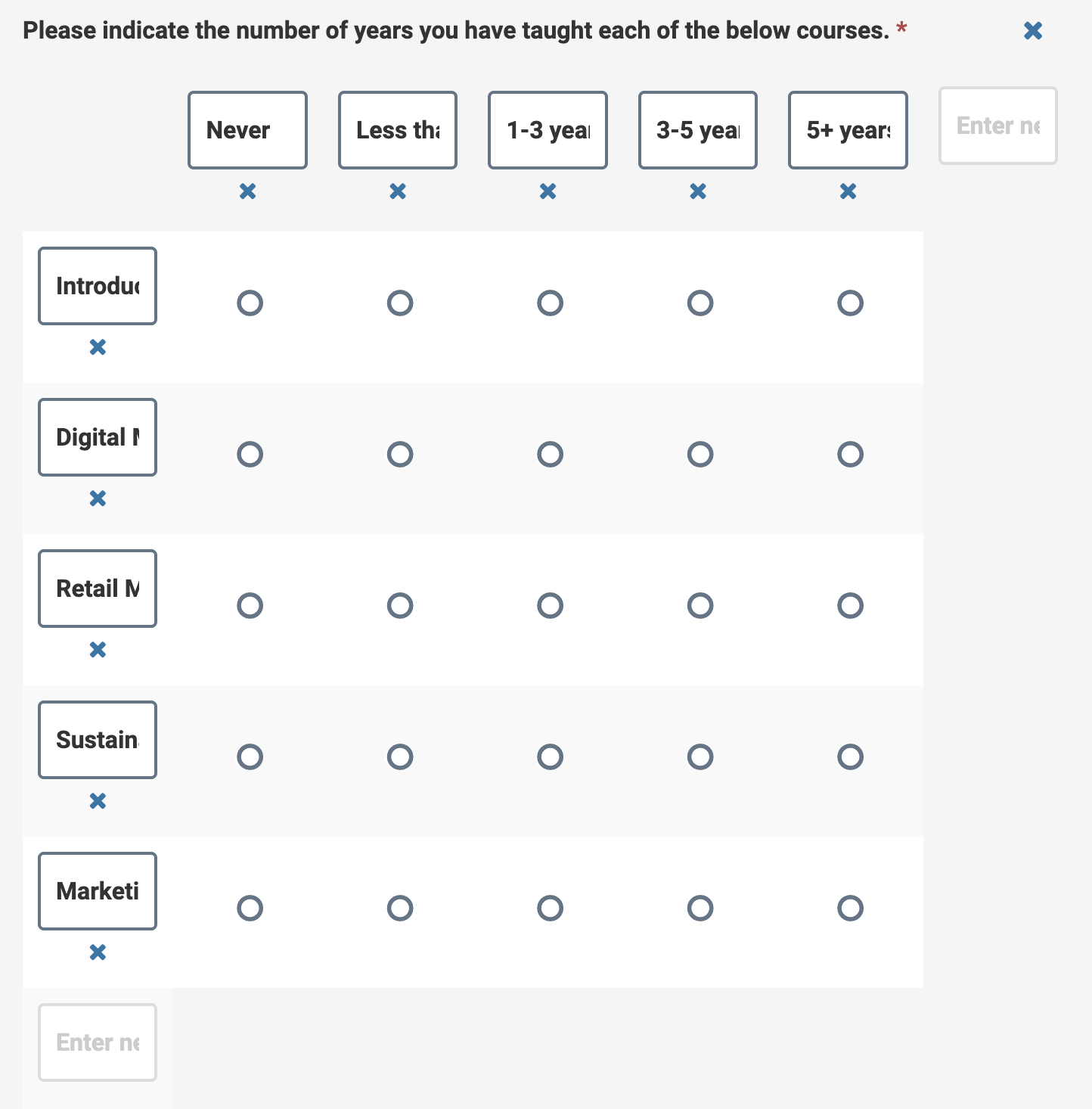
Grid: One selection per row. Great for ranking or preferences.