

Add Required Candidate Form to Packet Requirements
Unit Administrators in Review, Promotion & Tenure (RPT) can require candidates to complete forms as part of their review packet. Candidate Forms are added from the Packet Requirements section when creating a template or editing an individual case. Once added, they appear to the candidate as required packet items and must be completed before the packet can be submitted.
Creating a form and adding it to a packet are separate steps. Forms must already exist in RPT before they can be added to a case and are created and managed from the Administration section. This article explains how to add and edit required Candidate Forms when managing packet requirements for a specific case. For reviewer‑facing forms, check out this article on Adding Required Committee Forms to Case Review Steps.
Candidate forms can only be completed by the candidate. They cannot be made optional, but are always required once added.
Add Required Form
- Navigate to the Cases page and click the name of the applicable candidate to navigate to the candidate information page.

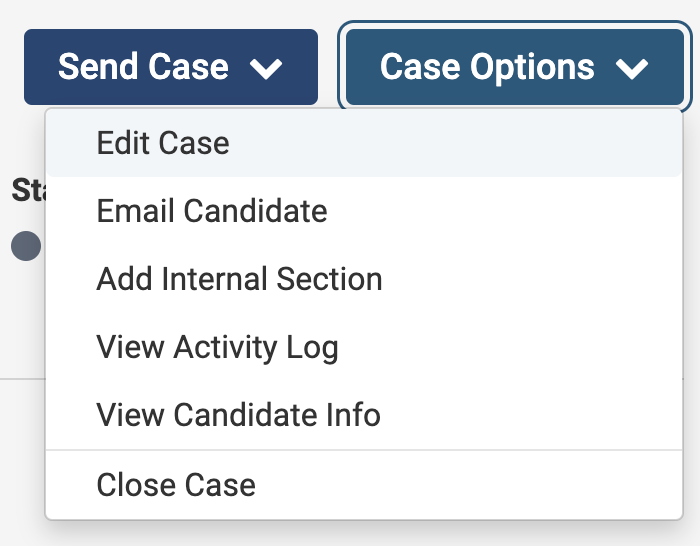
- Select Edit Case from the ‘Case Options’ dropdown in the upper right-hand corner.
- Navigate to the Candidate Requirements page and scroll down to the ‘Packet Requirements’ section. Click +Add Requirement next to the applicable packet section.

Each packet section can have its own due date, allowing institutions to require different materials at different stages of the review. Check out the Candidate Requirements section of this article for more information on managing candidate packet sections and requirements.
- On the Form tab of the ‘Add Requirement’ window, select the preconfigured form from the dropdown. Click Save when finished.

FAQs
Can candidate forms be optional?
No. Candidate Forms cannot be optional. While individual questions within the form may be optional, the form itself becomes required once added to a case or template. A candidate must submit at least one response for the form to be considered complete.
Can candidates save a form and return to complete it later?
Yes, with one important condition. Candidates can leave a form and return to it later only if all required fields are completed before leaving the page. As long as the form is in an unlocked section of the case, candidates can return to review or update their responses. If any required fields are left blank, the candidate’s progress will not be saved, and they will need to re‑enter their responses when they return.
Can an administrator complete a candidate form on their behalf?
No. Only the candidate can complete the candidate forms.
Can access to candidate forms be restricted?
No, Candidate Forms are always visible to the entire committee. Their visibility settings cannot be modified.