

Create and Manage Custom Application Forms
Faculty Search (FS) automatically collects basic applicant data (e.g. names, emails, and contact information) and typical documents (e.g. cover letters, CVs, and letters of recommendation). To capture additional information, administrators can create custom application forms. These forms can be added to new or existing positions and, if required, set as mandatory for all positions within a unit. Mandatory forms cannot be removed by lower-level administrators.
Changes to a custom application form automatically apply to all open positions using that form. Submitted applications are not automatically marked incomplete, but applicants may need to return and provide new required responses when editing is permitted. Applicants are not automatically notified of form changes, so it is recommended to bulk email applicants to explain any required action.
Authorized users can review recorded form changes under the System Logs menu by selecting Application Form Changes. Use this log to support troubleshooting and understand when changes were made to forms used by positions.
Create Custom Application Forms
- Navigate to the Administration page and select the Application Forms tab. Ensure the desired unit is selected under the ‘Settings for:’ dropdown at the top of the page. Displayed forms are based on your access level, not the unit you are viewing. Users with higher-level permissions may see forms from multiple units.

Application forms display key details, including form name, unit created at, creator's name, and current status. Users with appropriate permissions can edit or delete forms. If the creator’s name is missing, this typically means the original user account has been deleted or is no longer associated with the system.
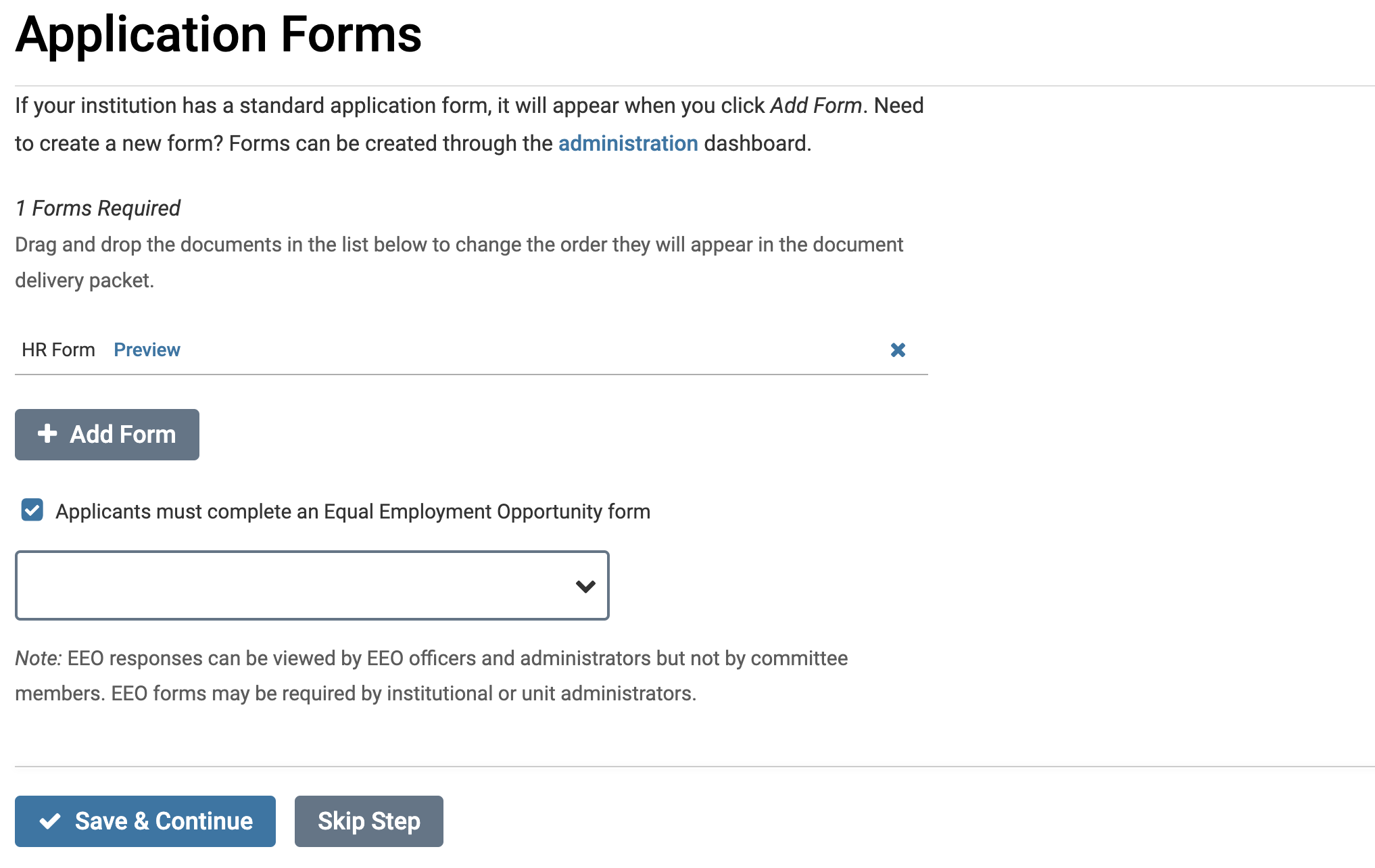
- Click +Add Form to begin creating a new form.
- Enter a clear form title on the ‘Add Form’ window that appears and then continue on to add a form description explaining the purpose of the form and how the information will be used. Continue by adding the necessary questions using the +Add Question button.
