Set Candidate Packet Deadlines
Administrators can enforce a candidate deadline by selecting the hard deadline option when creating a template. Once the due date passes, the candidate's packet is automatically submitted, and editing is locked. Institutional Administrators can set a default deadline type and notification preferences under Case Settings, but the deadline type can still be customized for each template. This article explains how to set the candidate packet deadline type within a template.
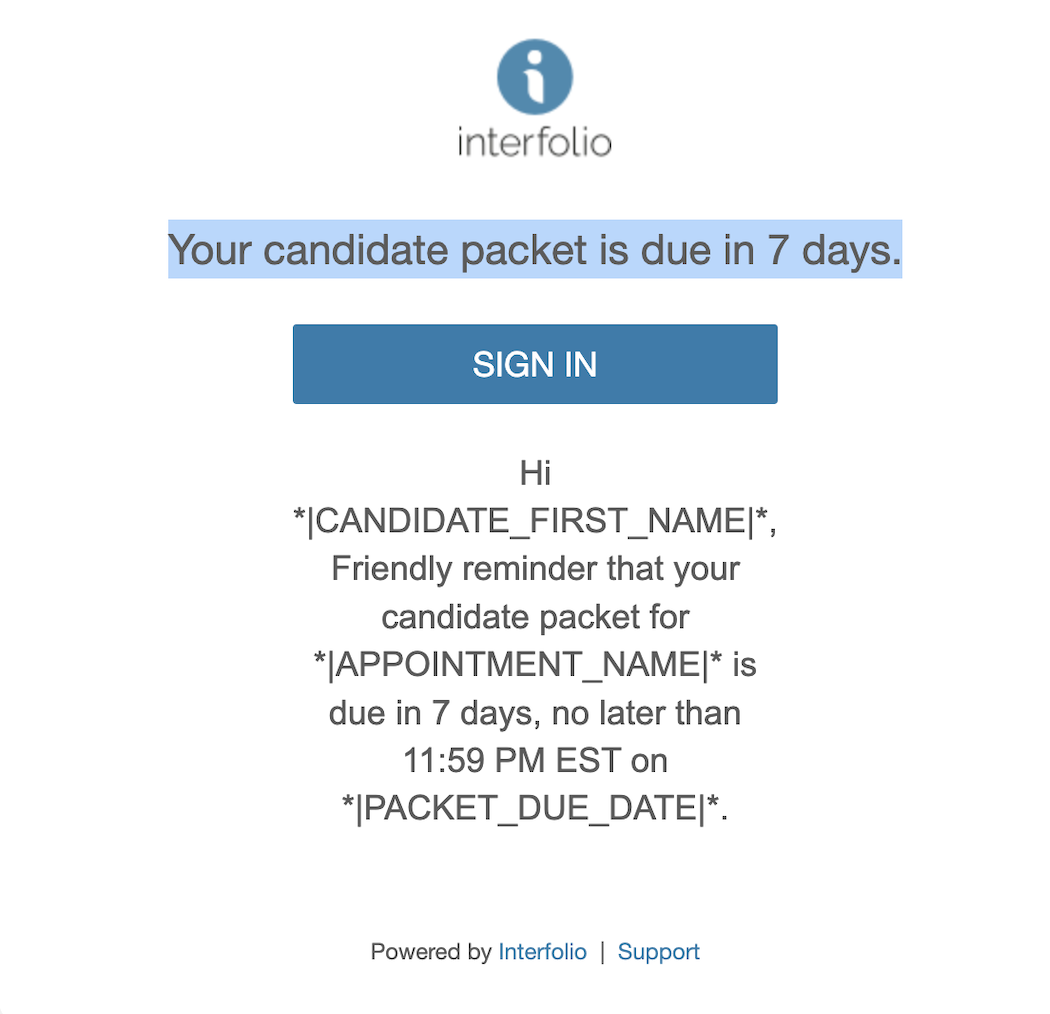
Email reminder notifications are sent to candidates, reminding them that their materials are due, seven days and one day before the due date entered in (soft deadlines or hard deadlines).
Set Deadline Type within a Template
- When editing or creating a new template, navigate to the Candidate Requirements step and click Edit Packet Settings.

- The Candidate Packet Settings window will display on the right-hand side where you can select the Packet Deadline Type (Soft or Hard Deadline) and the Candidate Packet Section Settings (whether candidates can edit their own sections or not).

The packet deadline type applies to all cases from the template. Hard deadline applies to the entire packet, while more specific section due dates are always soft deadlines.
What Happens When a Deadline Passes
- Soft deadlines: No automatic action occurs when the deadline passes. The case remains in the candidate stage until the candidate submits the packet or an administrator takes action.
- Hard deadline: RPT automatically submits the candidate’s available packet materials, locks all candidate packet sections, and advances the case to the first review step. Uploaded documents and any completed or partially completed form responses are submitted as they exist at the deadline.
Important hard-deadline behavior
- The deadline type is inherited from the template and cannot be changed within an individual case. If the wrong deadline type was selected, the case must be closed or deleted and recreated from the correct template.
- The deadline date can be extended for an individual case. Deadline changes are recorded in the Activity Log.
- Hard deadlines are enforced according to Eastern Time.
- If the packet contains a vita, automatic submission does not regenerate the vita. The most recently generated version is submitted.
Email Reminder Notifications
Candidates who have not submitted their packets receive email reminders seven days and one day before either a soft or hard deadline. Hard-deadline reminders also explain that the packet will be submitted automatically if the candidate does not submit it before the deadline.
 |
|