

Create/Manage Ad-Hoc and Standing Committees
Standing committees are created at the unit level (university, school, college) and can be reused for cases within the unit. In contrast, ad-hoc committees are case-specific and added to workflow steps during case creation or editing. A Unit Administrator or Case Manager must assign members to these committees before initiating the case workflow. Unit Administrators and Case Managers can create, modify, and manage these committees at their unit or below. This includes updating memberships, renaming, adding, removing, or recusing individual members, or replacing the committee entirely.
A committee member will not be notified when added to a committee. They will only be notified via email once the case progresses to their designated step in the review process, indicating that it is ready for their review.
Create Committees
Ad-Hoc Committee
Ad‑hoc committees are created directly within a single case and are used only for that case’s review process. Since ad‑hoc committees are temporary, any membership or permission changes you make affect only that specific case. To establish a committee that appears automatically on future cases and can be managed centrally, use the “Users & Groups” page to configure a Standing Committee.
- Navigate to the Cases page on the navigation menu and click the Name of the desired case to edit.

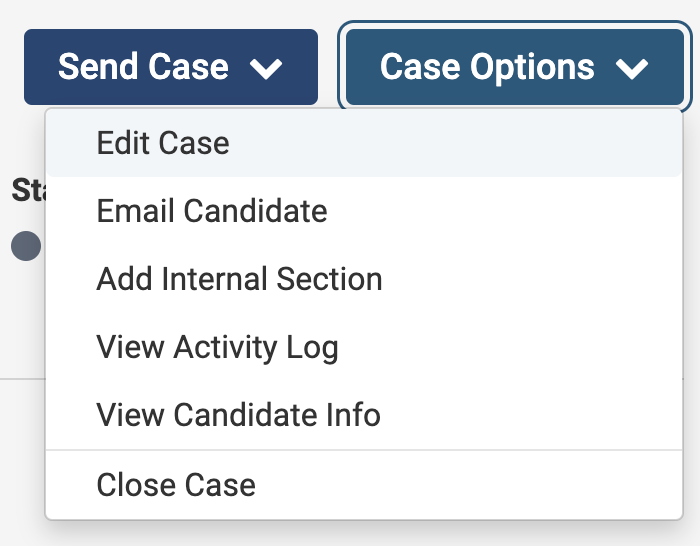
- Select Edit Case under the Case Options dropdown in the upper right hand corner.
- Select Case Review Steps on the Creating a Case toolbar on the right-hand side.

- Click Edit next to the desired step to add the Ad-Hoc Committee, then scroll down to the Reviewers section. Under the ‘Manage Members’ tab you can add or recuse committee members, or adjust committee member roles on a case-by-case basis. Selecting the star assigns the user as a Committee Manager.

Administrators can assign faculty members to committees only within their own unit or below.
Temporary committee members cannot be designated as Committee Managers.
- The other tabs allow you to add Instructions, Required Documents, and Required Forms for the committee, as well as adjust Settings (whether the committee can move the case forward/backward).
Standing Committee
Standing Committees are permanent, unit‑level committees that you manage from the “Users & Groups” page. Once configured, they can be applied to any case and will carry the same membership, permissions, and structure across all cases that use them. Unlike ad-hoc committees, updates made to a Standing Committee automatically apply to all current and future cases where the committee is assigned, making them ideal for recurring review groups such as departmental or college‑level committees.
- Navigate to the Users & Groups page on the navigation menu and then select the Committees tab at the top.

Download Standing Committees List
Click the new Download button at the top of this page to download your standing committees list as an Excel file. This can be helpful for reviewing templates in RPT and preparing for upcoming case creation tasks. This update allows RPT Administrators to view all committee members in one place, including details like committee name, unit affiliation, membership, and email addresses, making it easy to audit committees and prepare for upcoming cases.
- Click +Add Committee in the upper right-hand corner and fill out the 'Add Committee' window that displays.

- Click the Save button to display a list of Committee Members for the selected unit.

If changing the Name or Unit of the committee, be sure the click the 'Update' button to save.
- Search for the user's name to +Add them to the committee as a committee member. Close out of the window when finished.
You can assign a user as a Committee Manager by selecting the star icon next to their name.
Updating a user’s Committee Manager status in a standing committee updates that role everywhere the committee is used, including in all cases and in Users & Groups.
- Repeat the process until all committee members are added.
Manage Committees
Most committee management changes, such as adding or recusing members, are case‑specific. When made on the Case page, these adjustments apply only to the current case and have no impact on the committee’s configuration elsewhere. In contrast, Standing Committee updates made in the “Users & Groups” section are global. Any change to membership or management roles there is automatically reflected in every case that uses that committee.
If you need to restrict committee management privileges to a single case or review step, create an Ad-Hoc Committee by assigning the manager role within that case. Ad Hoc Committees allow for temporary, case‑level adjustments, while Standing Committee updates ensure consistency across all cases that rely on the same committee structure.
Navigate to the Reviewers section by selecting Cases > Name > Case Options > Edit Case > Case Review Steps > Edit
Assign Committee Manager Role
Be sure to assign the Committee Manager role (green star icon) to at least one committee member to grant them the ability to move the case forward and upload files. If no one is designated as the committee manager, the committee will be unable to move the case forward or upload recommendation letters, which can cause the case to become 'stuck.'
The chart below details how to make temporary changes to committee management.
| Action | Details |
|---|---|
| Add Multiple Committees |
Additional committees can be assigned if multiple committees need access to the packet at the same step. To enable group collaboration, create a Standing or Ad-Hoc Committee.
Committees cannot view each other's requirements. Therefore, if one committee requires the upload of a letter or the completion of a form, the other committee will not be able to see that requirement or form until it has been submitted. |
| Remove/Replace/Rename Entire Committee |
Unit Administrators and Case Managers in RPT can remove or replace committees or individual reviewers at any Case Review Step in both templates and active cases, while retaining the existing requirements and instructions for that step. This saves time by eliminating the need to rebuild committee instructions and requirements (such as document uploads or forms) when changing the assigned committee.
Note that a primary committee cannot be removed from a step if there is only one committee. At least one committee must be assigned to the Case Review Step at all times. If only one committee is present, it cannot be removed until another committee is added. Select the desired Options from the dropdown.
Only committees defined at the selected unit level, or at a higher organizational level, are available for selection. Replacing CommitteesRetains
Deletes
|
| Manage Individual Members |
After adding a user to a committee, you can manage members by:
Removing Individual Committee MembersRetains:
|
| Manage Materials |
All required documents/forms added here will have to be uploaded/answered or bypassed by a Unit Administrator or Case Manger to move the case from the step being edited. Instructions Under the ‘Instructions’ tab, click ‘Edit Instructions’ to add guidance for the specified committee. Check out these article on how to Add Required Documents or Required Forms for further details on the 'Required Documents' tab. |
| Manage Settings |
Click Edit Settings under the 'Settings' tab to indicate whether or not the committee can move the case forward and backward.
If this box is checked, it is recommended to recuse Unit Administrators or Case Managers from specific workflow steps in the template if they should not have access to cases at those steps. |


FAQs
How Can Institutions Assign Department-Specific Committees While Using a Single University-Level Template?
Using a single university-level template simplifies template management and ensures consistency across the institution. However, it also allows flexibility to assign department-specific standing committees during the case creation process.
-
Include Placeholder Committee in University Template: In the university-level template, include a placeholder committee, such as "Replace with Candidate's Department," in the case review steps. This placeholder ensures the template remains adaptable to different departments.

- Replace Placeholder Committees Within Specific Case: After creating a candidate’s case, administrators can replace the placeholder with the appropriate department-specific standing committee by navigating to the candidate's case and using the ‘Replace Committee’ function from the ‘Options’ dropdown to select the correct department committee.
This approach allows institutions to maintain a single, consistent template while addressing department-specific needs efficiently. It also reduces the administrative burden of managing multiple templates and ensures updates are applied universally, avoiding inconsistencies or outdated processes.
Does Removing a Committee Delete Documents and Form Responses?
When you "Replace" a committee via Case Review Steps > Options > Replace Committee, the committee will be replaced and all documents and form responses uploaded by the previous committee (including those from an ‘Individual User’) will be removed.

However, if you "Update" the Committee by adding or removing members (without replacing the entire committee), all existing form responses and uploaded documents remain attached to the case.
Ad Hoc and Standing Committees, can also have one user at a time.
Why is the review committee unable to see documents uploaded by the candidate?
The committee will only see documents in sections that have been submitted by the candidate. If the committee cannot see documents in the section/packet, it is likely that the candidate has not yet submitted them. There are a couple of ways to confirm that this is the case:
- When looking at the case list, the review step will be indicated beneath the candidate's name. If this says Case is with Candidate, this means that the candidate has not yet submitted any sections of their packet.
- Packet sections automatically lock after submission. If a candidate's case cannot be opened and there is a button that says Lock, then the section is unlocked. Unless a section has been manually unlocked post-submission, this indicates that the candidate has not yet submitted the section.
Packet sections can be locked/unlocked for candidate editing by a Unit Administrator or Case Manager.
What happens to committee member/manager's visibility when a case moves to the next step?
When a case moves to the next step, committee members and committee managers will only have access to the documents and information relevant to their assigned step. They will lose visibility of any documents or details from the previous step that are no longer accessible at the current stage of the review process. If they are not assigned to the new step, they will not have any access to the case.
How do we ensure committee acknowledgment before the case moves to the next step?
You can ensure this by setting up document requirements within the case. These requirements can be added on the Case Details tab and must be completed by the committee before the case can advance. This setup ensures that all necessary documents are reviewed and acknowledged, as the case will not move forward until all requirements are satisfied.
While this generally applies to all committee members, requirements can be set for committee managers only, meaning not every member may need to complete them.
What notifications do committee members receive?
Committee members will receive email notifications in the following scenarios:
- When a new case has been submitted, which may occur only once if the case is submitted as one large section with multiple uploads.
- When a case has moved to the committee’s designated step for review.
- If a case is structured with multiple sections, committee members will be notified when each section is ready for review, but they will only receive one notification for the overall case submission.
Please note that committee members do not receive notifications for each individual section submission if the case is divided into multiple files; they only receive a notification once the entire case is ready for their review at their assigned step.
If the membership of a standing committee is updated on the Users & Groups page, and that committee is assigned to an active case, will the membership on the case update automatically?
Yes, the membership of the standing committee will automatically update on all active and closed cases to reflect changes made in Users & Groups.
The one exception is that temporary committee members added directly to the case (not part of the official standing committee) will not be removed automatically when the standing committee membership changes.
Is it possible to add a standing committee from another unit to a case?
Standing Committees can only be added to cases within or below the unit where they were created. Committees from other units will not appear as options when managing a case in a different unit.
Need to add members from another unit?
Consider creating an Ad Hoc Committee. You can manually add those members to the Ad Hoc Committee for the specific case.
Can a standing committee be permanently deleted if it is still listed in a closed case?
No. A standing committee cannot be deleted while it is still associated with any case or template (including closed cases). 
If RPT reports that a committee is connected to an “active” case but you do not see the case listed, it is usually because the committee is still assigned to a closed case or to an active template (templates cannot be archived). To delete a standing committee, you must first remove it from all Case Review Steps and Template Review Steps where it appears:
- Replace the standing committee with a blank Ad Hoc Committee in the review step.
- Remove the standing committee from every step in all relevant templates and cases (open and closed).
- Once the committee has been removed everywhere, you can delete it from the Committees tab under Users & Groups.
If the case was deleted before the committee was removed from the review step, RPT will still treat the committee as “in use.” In those situations, an engineering ticket may be required to fully delete the committee.