

Create, Manage, and Assign Disposition Codes
In Faculty Search (FS), disposition codes are short, predefined explanations documenting why an applicant did not advance in the hiring process. They work alongside application statuses. An application status identifies where an applicant is in the review process, while a disposition code records why the applicant was not selected to proceed. This supports consistent institutional reporting, responsible documentation of committee decisions, and the maintenance of a clear hiring record.
Disposition codes are created at the institution level, and FS does not provide default codes. Once created, they are available to all units but are never visible to applicants. Examples may include:
- Salary requirements exceed the available range.
- Availability is incompatible with departmental needs.
- Another applicant more closely matches the preferred field of research, work history, or experience.
- Required education or training is not demonstrated.
- Required degree is not held.
- Recommendations or references do not meet the position’s requirements.
Committee Managers or Administrators can create an Applications Report by selecting to add a ‘Disposition Code’ Column for reports on the applications list.
Create and Manage Disposition Codes
Navigate to the Administration page and click the Disposition Codes tab in the left-hand navigation menu to view an alphabetically sorted list of existing disposition codes. From this page, you can add new codes using the +Add button or modify existing ones by clicking the pencil icon, before assigning them to a position.
Assign Disposition Codes
- Navigate to the Positions page and select the name of the desired position..

To add a column displaying applicants' disposition codes, click the Columns button, then select the 'Disposition Codes' checkbox.

- Add Disposition codes in bulk by checking the boxes next to the desired applicants' name(s) and then click +Disposition Code from the toolbar that appears.

- You can also add disposition codes individually from the applicant's profile by clicking the +Add button under ‘Disposition Code’

- You can also add disposition codes individually from the applicant's profile by clicking the +Add button under ‘Disposition Code’
- Select the desired Disposition Code from the drawer that displays on the right-hand side. Click Apply when finished.
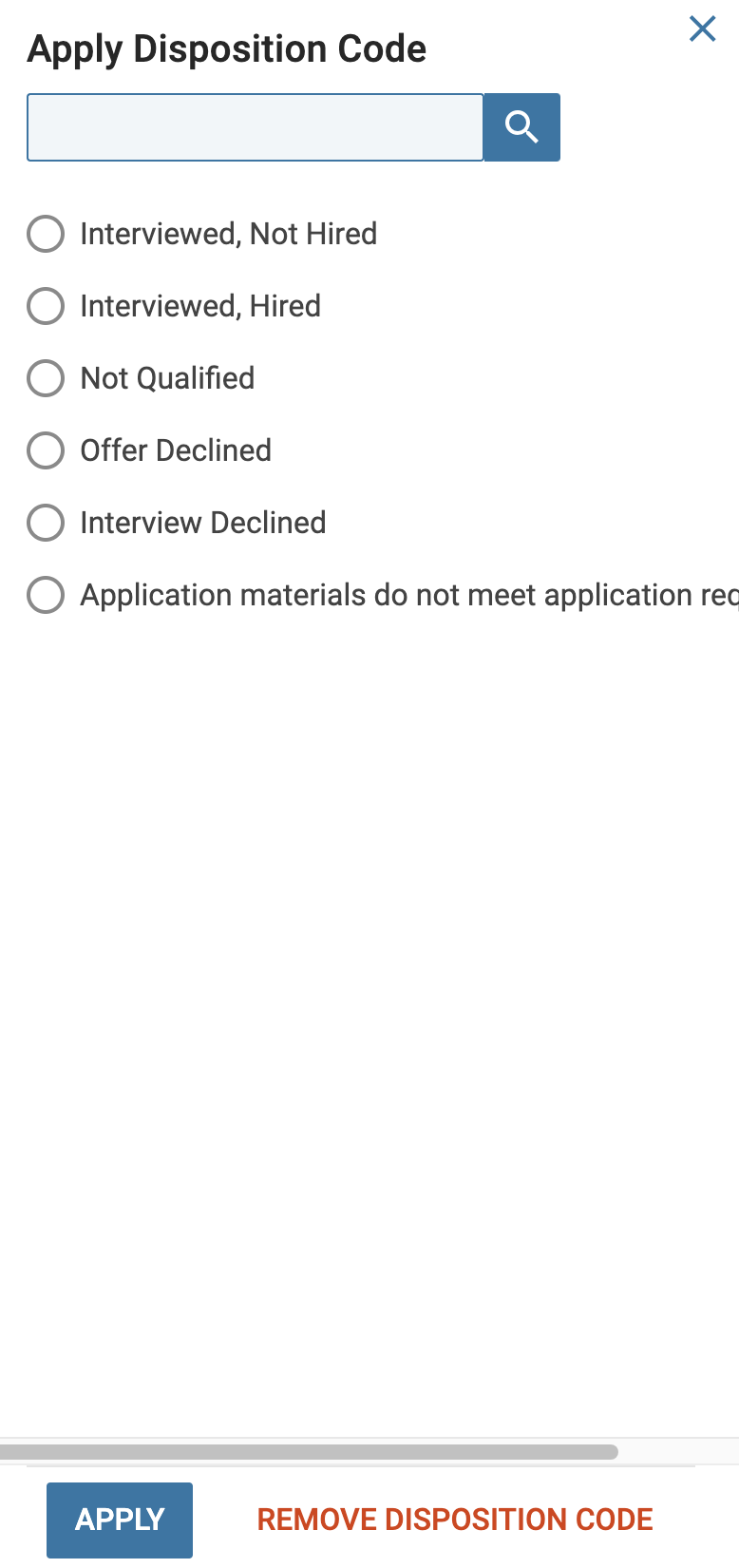
- You may also click Remove Disposition Code to remove a disposition code already applied.
Disposition Code Examples
Disposition codes complement, rather than replace, application statuses. When used with a thoughtful final application status, disposition codes can become even more powerful tools for tracking applicants. Some common final application statuses and their corresponding disposition codes include:
| Application Status | Potential Disposition Codes |
| Not Interviewed, Not Hired |
|
| Interviewed, Not Hired |
|
| Category/Situation | Disposition Code Examples |
|---|---|
| Application Issues |
|
| Qualifications & Eligibility |
|
| Job Status |
|
| Offer Declined |
|
| Performance & Assessment |
|
FAQs
Who can add disposition codes to applicants in a position?
Only Institutional Administrators, Unit Administrators, and Committee Managers can assign disposition codes to applicants. Committee Members (evaluators) do not have permission to add disposition codes.
Are disposition codes unit-specific?
No. Disposition codes created at a child unit are accessible to all units within the institution. This differs from position and application statuses, which are specific to individual units.